3D scans in the browser
Upload an intraoral scan and view it on any device. Compare before and after. Send it to the lab.
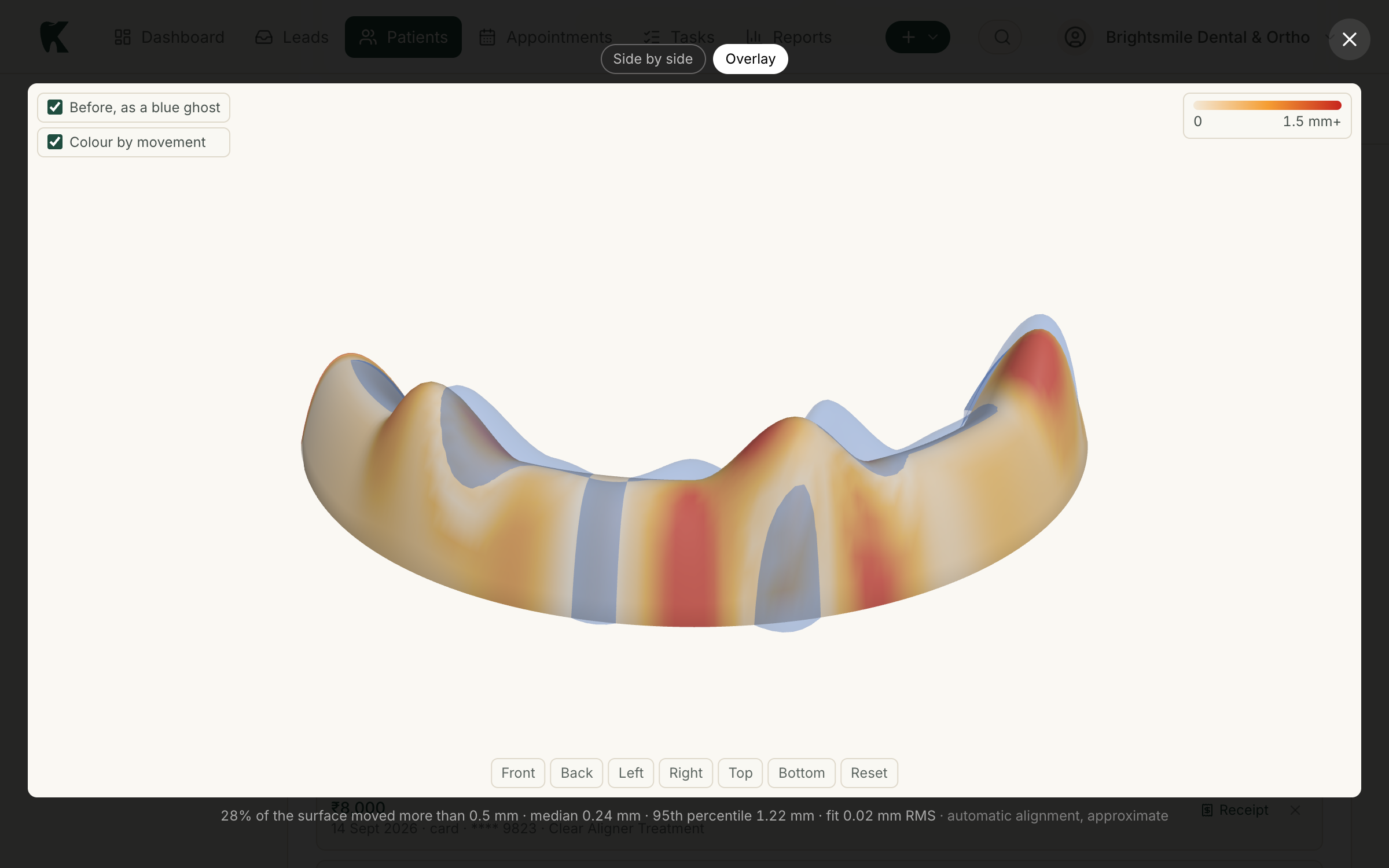
Kythro stores the STL, PLY or OBJ your intraoral scanner exports against the patient record and opens it in the browser, with orbit, zoom and six fixed views. Two scans of the same arch sit side by side with one shared camera, so progress is visible without lining anything up by hand. The scan goes to the lab as a download link on the lab case, and the patient sees their own before and after in the portal.
The problem this removes
The scan is the most valuable clinical file an ortho clinic makes, and it lives on the scanner laptop in a folder only the scanner software can open.
How 3D scans works in Kythro
- •Open formats only: STL, PLY, and colour OBJ with its texture
- •Orbit, zoom, and six fixed views on a phone or a desktop
- •Before and after with one shared camera
- •Measurements and a hole check on every upload
- •AI description of the surface, as a draft for the orthodontist to review
- •Attach scans to a lab case and copy the download links for the lab
- •The patient's own before and after in the patient portal
Questions about 3D scans
Which scanner file formats does Kythro open?
STL, PLY and OBJ, which every intraoral scanner exports. A colour OBJ can be uploaded together with its JPG texture. Proprietary project files such as Medit or Shining 3D project formats are not accepted, because they need the maker's software to open, which is the lock-in this feature removes.
Does the scan file leave our storage when the AI describes it?
No. The browser renders six small views of the surface and sends only those images to the model. The scan file itself stays in the clinic's storage. The description is labelled a draft and is written to be reviewed by the orthodontist; it does not diagnose or recommend treatment.
How does the lab get the scan?
Tick the scans when opening a lab case, or press Send to lab on the patient's scans. The lab case then carries a download link per scan, and one button copies them all as text for WhatsApp or email. The lab needs no Kythro account.
Related features
Photos and radiographs
Upload, label, and compare patient photos and x-rays across visits.
Patient records
A complete digital chart for every patient, accessible from anywhere.
Treatment plans
Build multi-line treatment plans with pricing, schedule, and patient consent.
Orthodontic assessment
Structured ortho data capture for crowding, bite, overjet, and more.
Ready to run 3d scans on Kythro?
Start a free 30 day trial. No credit card required.